
How to Set Up an Interactive Smart Board?
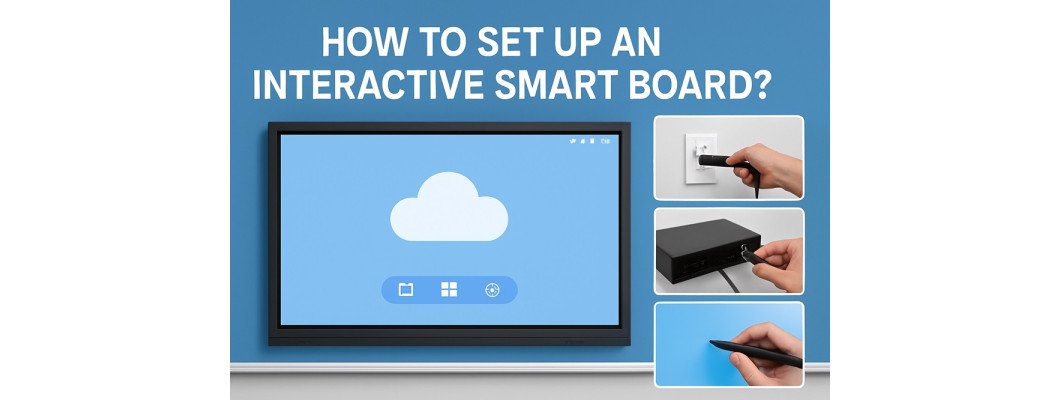
How to Set Up an Interactive Smart Board – Step-by-Step Guide
Interactive smart boards have become an essential tool for classrooms, meeting rooms, and collaborative workspaces. They make learning and presentations more dynamic, engaging, and efficient. Whether you’re a teacher, trainer, or office manager, setting up your interactive smart board correctly ensures the best performance and long-term reliability.
Step 1: Unbox and Inspect the Equipment
Before installation, carefully unbox the smart board and check all components. Typically, you’ll find:
-
The smart board display panel
-
Wall or mobile stand mount
-
Power cables
-
USB or HDMI cables
-
Stylus or touch pens
-
User manual and warranty card
Make sure everything is intact and free from physical damage.
Step 2: Choose the Right Location
Select a flat and stable wall or mobile stand position that provides a clear view for all users. Consider:
-
Avoiding direct sunlight or glare
-
Ensuring access to nearby power and data ports
-
Maintaining an optimal viewing distance
Proper positioning enhances visibility and reduces reflection.
Step 3: Mount the Smart Board
If you’re wall-mounting:
-
Use the provided brackets and ensure they’re level.
-
Secure the board firmly to prevent movement.
-
Connect all power and data cables before fully tightening the screws.
For portable stands, lock the wheels after positioning to keep the board stable during use.
Step 4: Connect to a Computer or Network
Most interactive boards support multiple connectivity options such as:
-
HDMI / USB – for direct PC or laptop connections.
-
Wi-Fi or LAN – for internet access and screen sharing.
-
Bluetooth – for wireless peripheral devices.
Once connected, the display should automatically detect your source.
Step 5: Install Software and Drivers
Install the manufacturer’s software or drivers (often provided via CD or downloadable link). This software allows you to:
-
Calibrate the touch screen
-
Use annotation tools
-
Save or share written notes
Make sure your operating system is compatible with the interactive board model.
Step 6: Calibrate the Display
Calibration ensures touch accuracy. Follow on-screen instructions to align touch points. A properly calibrated board responds instantly and accurately to pen or finger gestures.
Step 7: Test Functionality
After installation, test all features:
-
Touch response and gesture control
-
Writing with the stylus
-
Internet connectivity
-
Screen mirroring or wireless casting
If something isn’t working, check connections or reinstall the software.
Step 8: Regular Maintenance Tips
To keep your smart board in top condition:
-
Clean the screen with a soft, dry cloth.
-
Avoid using harsh chemicals.
-
Update software regularly.
-
Store pens properly to avoid loss or damage.
Final Thoughts
Setting up an interactive smart board is a simple process that can transform how you teach, train, or present. With the right setup and maintenance, it can deliver years of interactive performance and collaboration.
We Provide Interactive Smart Board Sales & Setup Services in Bangladesh
At Techdeal, we supply and professionally install Interactive Smart Boards across Bangladesh. Whether for schools, offices, or conference halls, our team ensures a smooth setup and expert guidance.
Contact us today to get the best price and hassle-free installation service.

Leave a Comment